en


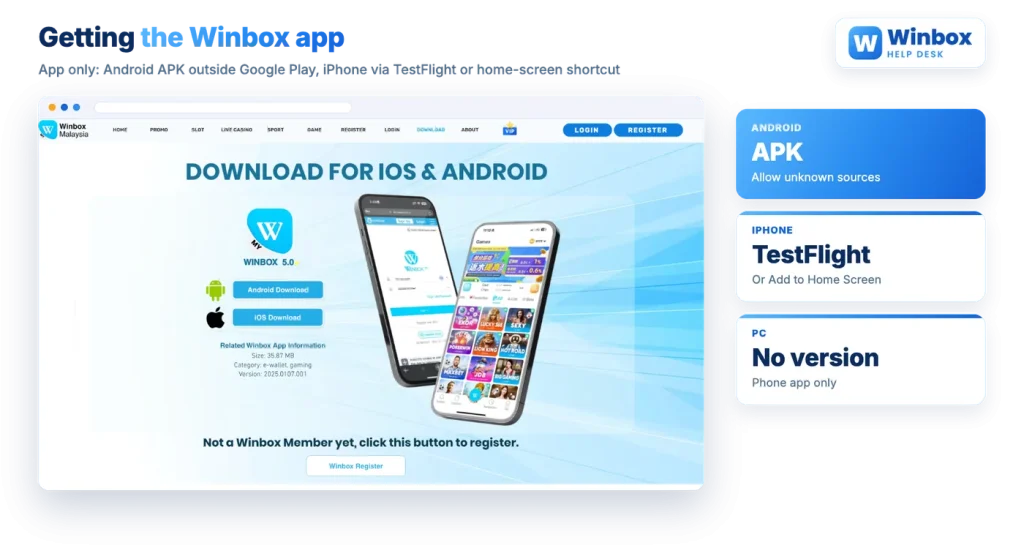
Winbox is distributed as a phone application. There is no desktop client, so a Winbox download always means putting a file or a shortcut on a phone or tablet, never installing a program on a laptop. On Android that file is an APK handled outside Google Play. On iPhone there are two published routes, and neither one is an App Store listing.
That makes installation the first point where things go wrong for new users: a blocked install, a warning screen, or a download page that looks right but is not. This page walks through both platforms in order, then covers how to judge the file you are about to open.
The published position is plain: the service runs in the phone application version only. So there is nothing to install on Windows or macOS, and no browser-based desktop lobby to log into. Everything happens inside the app, including the wallet, the game sections, the chat lobby and the 4D product.
This matters for a practical reason. Because no official store listing exists for either platform, the app reaches players through download pages and agents instead. That is normal for this brand, but it also means the usual safety net of a store review process is missing, and you supply it yourself by being careful about where the file comes from. If you want the wider picture first, our overview of how the app is organised explains the wallet and provider structure before you install anything.
On Android the install is a two-part job. First the browser downloads the APK, then Android asks whether it may install software from that source. As a rule, Android blocks installs from anywhere other than the Play Store until you grant that permission, so the warning you see is the system behaving normally rather than a sign the file is broken.
Two small habits make this smoother. Keep enough free storage before you start, because a half-finished install can end in a vague failure message. And once the install is done, switch the unknown-sources permission back off if you would rather not leave it open for that browser.
For iOS, two routes are published, and they are not equivalent.
The first is TestFlight. TestFlight is Apple’s own installer for beta builds, available from the App Store, and it is how apps that sit outside normal store distribution reach iPhone users. You install TestFlight first, then open the Winbox build through it and accept the prompts it shows. The app then appears on your home screen like any other icon.
The second is a Safari shortcut. You open the address in Safari, tap the share icon, then choose Add to Home Screen. What you get is a web app: an icon that loads the site in a stripped-down browser window. It installs nothing, so it is the quicker option, but it depends entirely on the address you saved. If you add a shortcut to the wrong page, you have put the wrong page one tap away from your home screen for as long as the icon sits there.
| Device | Route | What to watch |
|---|---|---|
| Android phone or tablet | APK installed directly from the browser | Expect a blocked-install warning; grant the permission only to a browser you trust, then install |
| iPhone or iPad | TestFlight, Apple’s beta installer | Install TestFlight from the App Store first, then open the build through it |
| iPhone or iPad | Safari Add to Home Screen shortcut | It saves whatever address you were on, so check the address before you add it |
| Windows or Mac | None published | The service is phone application only; treat any desktop installer as a red flag |
The table is also a quick way to sanity-check instructions you have been sent. If a message tells you to run a Windows setup file, or to install an iPhone app from somewhere other than TestFlight or a browser shortcut, it does not match anything published for this app.
Stated
Winbox download pages promise a safe, official app.
In practice
The app is distributed outside Google Play and the App Store, so the safety of the file depends entirely on where you got it. Several sites present themselves as the official source, and the brand also works through agents, which leaves no single address a reader can rely on by name.
Two risks follow from that, and both are general to sideloaded apps rather than specific to this brand. A modified APK can be repackaged with added code before it is re-uploaded, which is why a file passed around in a group chat deserves less trust than one you fetched yourself. And look-alike download pages exist because they work: a page that copies the branding closely enough can collect a UID and password from a visitor who never doubted it.
So treat the install as part of your account security, not a separate chore. Use a link you already trust rather than one that arrived in a message, check the address in the bar before you download or add a shortcut, and never type your UID, password, OTP or Payment PIN into a page you reached from a forwarded link. Our notes on spotting look-alike sites go through the logos on those sites, the missing operating company and the warning signs in more detail.
Once the app opens, you either sign in with an existing UID or create one. New accounts bind a phone number or email, send a 6-digit code through Request OTP, and then let you choose the UID and password. The UID cannot be changed later, so read the format rules before you commit to one. The full walkthrough, including what to do when a login fails, sits in our guide to registering your UID.
Sign-up also asks for a referrer, entered as a UID or scanned from a QR code. That field links your account to an upline, and it has consequences beyond the install: promotions on this brand are tied to the referrer you registered under and are claimed through that agent’s customer service rather than from a central promotions page.
Both install routes above are the ones the brand publishes for Android and iPhone. Check the address before you download anything, and keep your UID and password out of pages you reached from a message.
Apps distributed outside the stores do not update themselves through Google Play or the App Store, so the update prompt is expected from inside the app. When it appears, follow it rather than hunting for a file elsewhere, because searching for a new file is an easy way to land on a copycat page. On Android an update is normally another APK install, which means the same permission screen may show again.
If the app refuses to open, work through the dull causes first. Confirm the install finished instead of stopping at a warning, close the app fully and reopen it, and test your connection on something else. A home-screen shortcut on iPhone will also fail if the saved address stops loading, since there is no installed app behind the icon.
Customer service runs around the clock in several languages, reachable from live chat inside the app, and an install problem is a reasonable thing to take to it. What is not reasonable is handing over your password or Payment PIN to anyone, support included. Those are for the app’s own screens and nowhere else.